Backgammon is a popular and complex board game. Playing it requires an intriguing combination of skill and luck. The game is ancient. Its essentially modern form first arose in Persia during the 6th century CE. On the other hand, its most recent innovation, the doubling cube, was introduced only in the 1920s. However, its origins date back some 5,000 years.
Using the software described here you can:
Play the game against another human being via the web. The two of you may reside on different continents!
Play the game against any of nineteen built-in AIs: nine linear AIs, whose play is governed by two dozen
adjustable parameters, and ten neural nets that taught themselves by playing against themselves.
Set up and analyze any position.
Design your own AI and evolve it via a genetic algorithm.
Train a neural net of your own, in your own browser, and play against it.
Run a tournament among AIs you design or choose from the existing list.
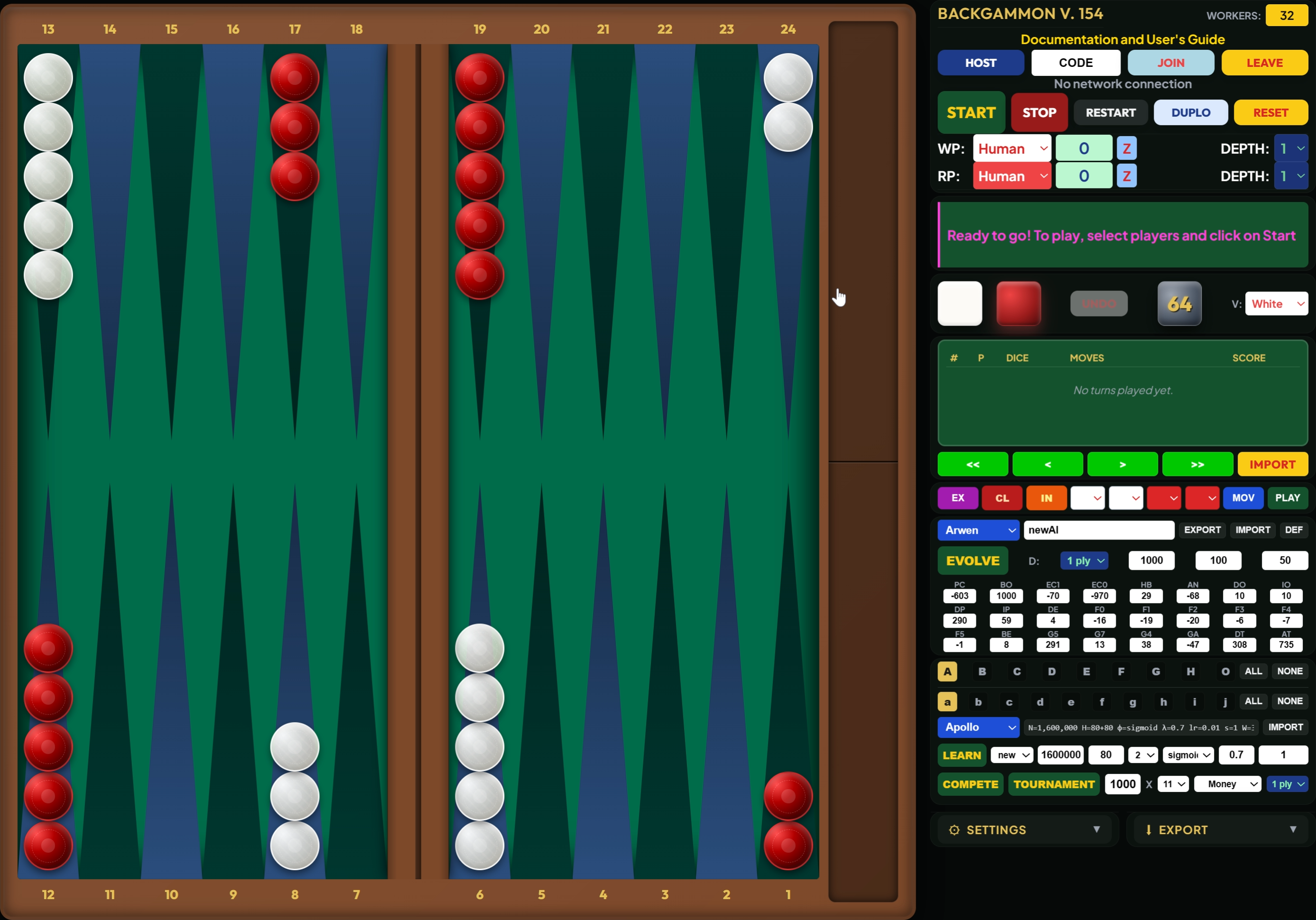
You can get to the game page by clicking on the top headline of this page, anywhere in Figure 1, or right here. You'll see a game board and a column of controls, as shown in the Figure. Each control has a tooltip popup that you'll see if you hover over the control. The second line of the control column is a link back to this page. All the controls are also explained on this web page. If you are new to Backgammon, you want to learn its rules first, but not on this site. The clearest online introduction I am aware of is here.
If this is the first time you see this website, you may want to browse the information on this page before proceeding to the game itself.
The Table of Contents below takes you to any part of this guide. Clicking on a symbol like this ⇧ anywhere on the page brings you back here.
There are numerous books and websites on Backgammon. The best description of the game rules that I know of is here. Considered by many to be the Bible of Backgammon is the classic (first published in 1976) book Backgammon by 1978 World Champion Paul Magriel. It certainly provides a great starting point for the study of Backgammon. Given the multitude of resources I decided not to add yet another description of the rules to this website. I will assume throughout that you are familiar with Backgammon rules and terminology.
There are two parts to the playing page, as shown in Figure 1: the game board on the left, and the control column on the right. The layout should adjust to your window size. A large window in landscape mode works best. The game board is always rendered as a square that is as large as possible. The control column is to the right of the game board if it fits, otherwise it is below the game board. The control column becomes scrollable if the browser cannot show all of its contents on the screen.
In the default view of the game board, as shown in Figure 1, the home board of White is in the lower right quadrant, and White's outer board is in the lower left. Similarly, Red's home and outer boards are on the top, on the right and left, respectively. Red moves from the white home board to the red home board and White moves in the opposite direction. Both players move from their opponent's home board to their own home board, and from there to the collection tray next to the home boards. Red moves clockwise, and White moves counterclockwise. The bar contains any checkers that have been forced off the board by the opponent, and the collection tray receives all checkers that have been borne off. The points of the board are numbered from 1 to 24. It is sometimes convenient to think of the bar as point 25 for White and 0 for Red, and the collection tray as point 0 for White and 25 for Red. With these conventions, Red always moves from its current point to a point with a larger index, and White moves to a point with a smaller index. The default view is White's — the view White would have sitting at a physical board, and the one shown in Figure 1. The Red view is the one that matches the diagrams on the external Backgammon rules page linked above. You can change the view at any time in the V: menu in row 9, as described below.
There are several ways to move a checker from point \(x\) to point \(y\) on the game board. You can drag it from \(x\) to \(y\) or you can first click on \(x\) and then on \(y\). There is also a setting (see the description of row 21) that lets you move a checker with a single click if that click uniquely identifies the move.
If the move is part of a game the system will let you only make legal moves. However, there is also an examination mode that lets you move checkers freely and set up any position.
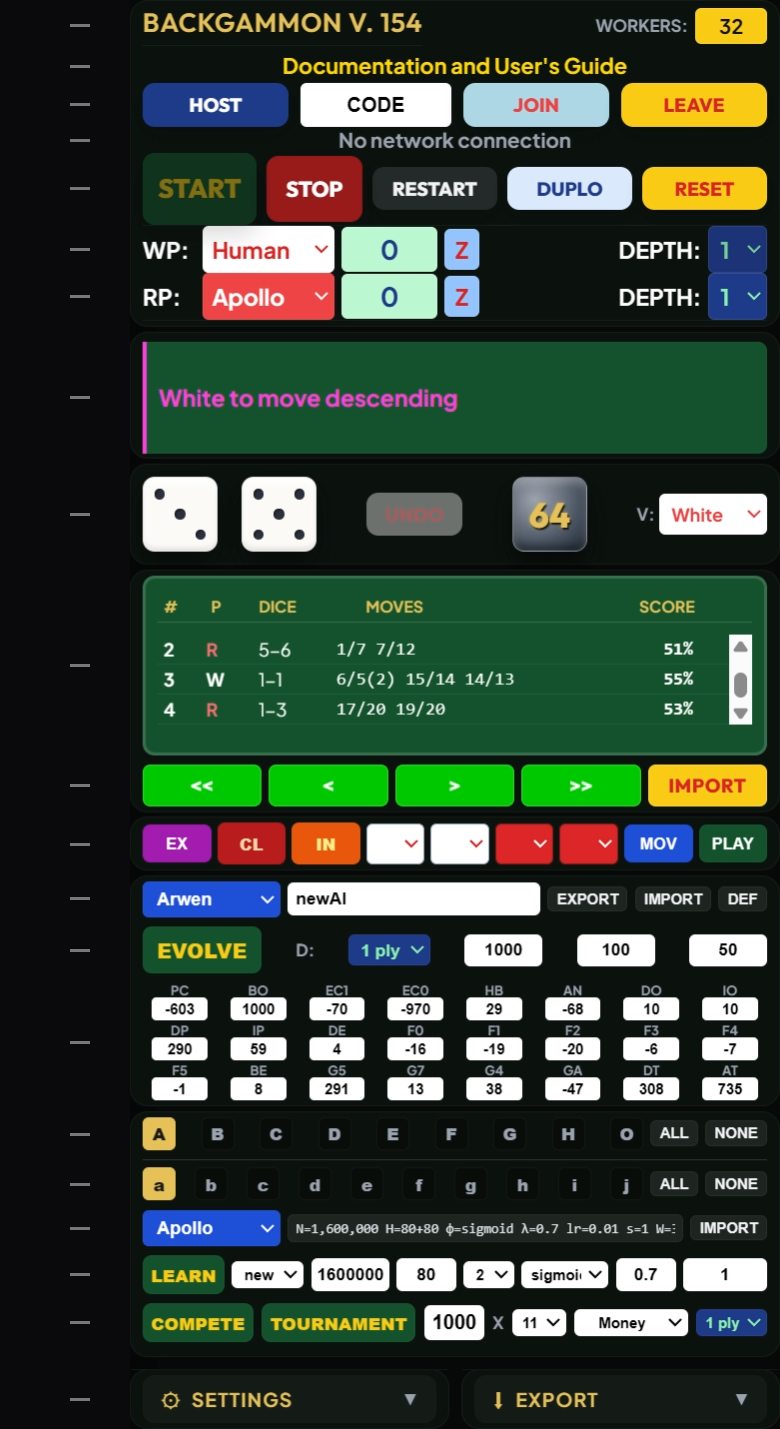
Figure 2 shows an image of the control column. Each row of that column is explained in this section. Clicking on the row number in the Figure takes you to the relevant explanation on this page. Clicking on the row number at the explanation takes you back to the Figure.
This line contains the name of the game, BACKGAMMON, and the current version number. Together they constitute a clickable link that takes you to this manual page.
Workers are individual processes that your computer lets you run in parallel. The software obtains the available number of workers from your computer and by default uses that number of workers to run tournaments and evolutions, or individual games against AIs that search more than one move ahead. You can replace the default number by any other positive integer. Using fewer workers than are available may slow down your computations, but it may be advantageous when you are running other CPU-intensive processes on your system. Specifying more than the available number of workers is possible, but not likely to be useful. Many computers offer 8 workers, but you may have many more.
These controls let you set up a match between two human players in two different locations. Both of you have to have an internet connection, and you also have to have an open communication channel to your opponent, by telephone, on screen, or by email. One of you serves as the host, the other as the guest. To set up a match proceed as follows:
As host click on the button labeled HOST. A code (usually a three digit integer) will appear in the text field labeled CODE. Communicate that code to the guest.
As guest enter the code into your CODE text field, by clicking on the word CODE and typing the code for your game session. The word CODE will disappear in the process. Establish the connection by pressing the enter key, or by clicking on the button labeled JOIN. Once the connection is established a notification will appear in row 4.
As host click on START (in row 5) and then click on the playing dice in row 9 to determine who starts the game. If you have already played a game, and you want to play another, as host click on RESTART in row 5.
The two of you can then play a game as described below.
The LEAVE button severs the network connection. It does not reload the page or reset the board; it simply disconnects you from your opponent. Either player can leave and continue on their own computer.
Notes:
The host always plays as White, the guest as Red. Either player may be the first to roll the dice. In the first game, the first player to roll the dice is determined at random. Thereafter the beginning player alternates.
The host's view by default is White, that of the guest is Red.
Either of the two players can act as host, but the guest does not have all the privileges that the host has. In particular the guest cannot restart a game. Time travel through the move list (see the description of row 10) is also switched off for the guest by default, although the guest can switch it back on in the Settings. When either player navigates, the other follows. The main purpose of these restrictions is to remove sources of confusion.
These buttons control the flow of a game. START begins a game, and also resumes one that has been paused. STOP pauses a game in progress at the position currently on the board; it resets nothing, and START picks up from there. RESTART ends the current game and immediately begins a new one: the board returns to the starting position and the player who did not open the previous game opens this one. The scores in rows 6 and 7 are carried over rather than cleared — use Z or START to zero them. (If the previous game was launched from a position you set up by hand in examination mode, RESTART instead reproduces that same position, the same opening player and the same opening dice.) RESET reloads the game page and thereby returns all settings to their defaults.
STOP does double duty: when a tournament, a competition, an evolution or a training run is under
way it stops that instead, since there is no interactive game underneath to pause. Whatever had been played
by then is still saved — a stopped tournament or competition writes its spreadsheet, marked with how many
of the planned matches were actually played, and a stopped training run saves and installs its net.
DUPLO plays the game that has just ended a second time, with identical dice rolls, but the players switched. So Red plays White's previous game and White plays Red's previous game. This is similar to duplicate bridge in which the same hands are played by several partnerships. The purpose is to reduce the influence of chance. It can't eliminate chance completely because the effectiveness of a dice roll depends on the current position, i.e., the previous moves of both player and opponent, and those may not be the same as they were in the previous game. By default DUPLO is used in tournaments, competitions, and evolution runs. This feature can be turned off in the settings.
Here you can select the players, the white player in row 6, and the red player in row 7.
The options offered in the first menu in those rows are either Human (the default) or any one of nineteen AI players: nine linear AIs and ten nets (the two kinds are described below), each group ranked by decreasing performance. A detailed description of how these AIs work is here. The cyan text field keeps track of the score in a multi game match. The button labeled Z resets the score field to zero. The depth menu lets you select the search depth for AI players, measured in plies (half moves, the action of one player). 1 ply is the default. At that depth the system examines every board that can be reached with the given dice roll, and picks the move that optimizes the score. At 0 plies the AI picks the first available legal move. You can use this setting if you are looking for a crazy opponent, or for other experiments.
2 plies considers all possible dice rolls and moves after the first ply, and then computes an expected score for the board after the first ply. A three-ply search goes one level deeper. The extra depth is worth having: the strongest net searching 2 plies beat itself searching 1 ply in 1,155 of 2,000 matches (57.8%), and each further ply roughly halves its rate of error; see the AI page for the measurements.
There is a separate page giving more information about the AI players and algorithms.
You use the controls in this row during a game against a human or an AI. Specifically, there are:
The Playing Dice. Initially one of the dice is white, and the other is red, as in Figure 1. Clicking on them will constitute the first roll. The player whose die shows the higher number makes the first move. Subsequently the first move alternates between White and Red. Otherwise, the color of the dice indicates the player whose turn it is. As the game proceeds the color of the dice will change and match the player who is making the current turn. When the dice are blank the corresponding player can roll the dice by clicking on them.
For example, in Figure 2 the dice are white, so it is White's turn, and they show the 3 and the 5 that White
has rolled and not yet played. As you make your moves the dice turn blank. For example, if you roll 5-3 and move one checker 5 spots forward then the die showing the 5 will turn blank and the other die will continue to show 3. After you make the second move of 3 spots forward the dice will turn white, and it will be the other player's turn. Thus the dice always show what moves you can still make. If you roll a double both dice will continue to show the pips after your first two partial moves, and then will turn blank one at a time.
The Doubling Cube. You offer a Double by clicking on the Doubling Cube. Your opponent is notified of your offer and can accept it by clicking on the playing dice, or reject it and resign by clicking on the doubling cube. The color of the Doubling cube indicates the current owner of the cube. Initially it is gray, indicating that either player may offer a Double.
The Undo Button. If you have made a move but you still have moves available you can undo the last move by using this button. Thus you can always undo the first move, and when rolling a double you can undo the first three moves. However, after you make the last move of your current roll the game automatically switches to the other player and the undo button is ineffective.
The View Menu.
This menu lets you choose the orientation of the game board on your screen. There are five options:
White. White's home board is on the bottom right. This is the view shown in Figure 1, and the view White would have when viewing a physical board.
Red. Similarly, the view Red would have. Red's home board is in the bottom left quadrant.
Home. This is one view a spectator might have. The home boards are at the bottom of the screen.
Outer. The view a spectator on the other side of the board would have. The outer boards are at the bottom of the screen.
Magriel. A view that is consistent with the diagrams in Magriel's book, with White corresponding to X and Red corresponding to O. It can be obtained by reflecting the White view across the bar, or the Red view across the horizontal axis.
The default view is White, except that
when playing a networked game the default view of the guest is Red.
This field contains a scrollable list of the moves made so far in the current game. It lists the running index of each move, the dice roll, and the resulting moves. Each row is scored by the AI that made the move: an AI's own row is scored by that AI, and a human
playing against an AI is scored by that opponent. A human whose play no AI is currently judging — a game
between two people, or a position under examination — is scored by the net selected in row 18, or by the
AI of row 13 if the NET ANALYSIS setting of row 21 is turned OFF. The two kinds of AI report
differently, and the column says which you are looking at: a net gives the probability that White wins,
as a percentage, and a linear AI a score in its own band of roughly ±1000. Showing the score can be turned on and off in the Settings. Positive scores are good for White and are shown in a white font in the Table. Similarly, negative scores are good for Red and are shown in red. The sign convention never flips: every score is given from White's point of view, so a strong Red move appears as a negative number on Red's own row.
Clicking on any row in the table will take you back to the corresponding move and reset the game board to the configuration after that move. The game can be resumed from that position by clicking on the playing dice. Any dice rolls made earlier will be repeated. Thus the Table can be used to explore alternatives to previous moves. However, you can start from an earlier position with fresh dice rolls by clicking EX in row 12, followed by clicking START in row 5.
The four green buttons in this row let you travel back and forth in the Move list. < and > move you one move forward or backward, and << and >> move you to the beginning or end of the table. You can use these buttons to review a game.
The yellow IMPORT button at the right of the row reads a game record back into the move list. A game record is the text file that MOVE LIST in row 21 downloads, and that AUTO RECORD writes by itself at the end of every game. Loading one refills the move list with that game, so you can step through it, click any row to return to that position, and examine it just as if you had played it. You can also simply drag the file onto the control column. The record is checked against itself as it is read: every position is recomputed and compared with the pip counts stored in the file, and if anything disagrees the file is refused and the status field says at which move. Loading a game replaces whatever is on the board, and it also restores the two players, so a game between two AIs is scored with the same AIs it was played with.
The controls in this row let you set up and analyze a position, and start a game from it. All positions require that there are precisely 15 red and 15 white checkers.
Specifically, the controls have the following effects:
EX exits play mode and enters examination mode for the position currently on the board.
CB sets up a position with all checkers on the bar.
CT sets up a position with all checkers in the collection trays.
IN sets up the standard initial position.
The red and white menus serve as dice. You can select a roll using either the red dice or the white dice, but not both sets. If you start an analysis or a game, and no dice have been set, the system will apply a random roll.
MOV lists the available legal moves in the move list field, best first, with two numbers for each: the probability that White wins the game if that move is made, and the equity the move is ranked by. The equity is the expected number of points won, counting gammons and backgammons. The probability of winning is shown as a percentage in White's view, so that a number below 50 means Red is ahead. Percentages below 50 are printed in red, and 50 and above in white. This matches the numbers and the convention in the score column of row 10. By default the winning probability and the equity are computed by the neural net selected in row 18. Turning the NET ANALYSIS setting off in row 21 hands the analysis to the AI selected in row 13.
PLAY applies the top-ranked move to the board and hands the roll to the other side, leaving you in examination mode.
The START button in row 5 starts a game from the currently set up position.
The RESTART button, also in row 5, restarts a game from the same position as the most recent game. You can navigate in a set up game exactly as you would in a regular game. By default, doubling is turned off in examination mode (to prevent immediate terminations in lopsided positions).
The next five rows let you work with the AIs in various ways.
Types of AI
There are two types of AIs: linear AIs , and neural nets (or nets for short). Linear AIs are based on scoring a linear combination of certain numeric features of a position. Neural nets implement a common and more general approach to AI play. With this software you can play against a number of AIs of both types, you can have them play against each other, you can evolve and import linear AIs, and you can train nets.
Click here for a comprehensive description of the inner workings of both types of AI.
Matches
A match is a set of one or more games. If a match consisted of a single game with unlimited doubling, the point count in that game could become astronomical through repeated doubling. This actually happened in earlier versions of this software: one game worth millions of points swamped all the other games in a tournament of thousands of games. A match is therefore defined, both in actual competitive play and in this software, in a way that prevents any one game from dominating. The two players play a series of games, using the doubling cube freely, until one of them reaches or exceeds an agreed point count. Whoever gets there first wins the match, and a match win counts as exactly one win however lopsided the individual games were.
The point count is set in the menu on row 20 and is 11 by default; the available choices are the odd numbers from 1 to 19. Even numbers are excluded because they might lead to a tie. A match to 11 needs at least 11 games if every game is worth a single point, and can run to 21 games (10–10, then a decider), but in practice, because of doubling and gammons, the average is about 5 games. Choosing 1 creates matches consisting of a single game, in which doubling, gammons, and backgammons
have no effect on the match outcome. Note that you can also turn off doubling altogether in the Doubling menu in row 20.
This software implements two standard match rules:
The Crawford Rule: the one game played immediately after either side first comes within a single point of winning the match is played without doubling — otherwise the trailing player would double at once, having nothing to lose.
The doubling cube is capped: it is never raised beyond the number of points the trailing player still needs, since anything above that cannot change who wins the match. At a match length of 1 the cap makes the cube dead altogether, which is why that setting produces plain single games.
The controls in this row let you import or export a linear AI. You can thus keep a set of AIs of your own, play against them, evolve them, or let them play a tournament against other AIs. From left to right, the following controls are available:
The AI menu, showing Arwen by default, lets you pick any of the currently active AIs. This will update the parameter list in row 15 and you can then work with that AI. If a game has been played by two humans, or is ongoing, and a move list is present, then changing the selected AI will also change the AI used for scoring the game positions, and the scores in the moves list will update — provided the NET ANALYSIS setting of row 21 is OFF. With that setting ON, which is the default, a human's play is scored by the neural net chosen in row 18 instead, and this menu only selects the AI whose parameters are shown in row 15. By default, 9 linear AIs are available. They are sorted alphabetically by decreasing performance (as determined by a long tournament). I picked the parameters of the bottom one, Origin, basically by guessing, when I first started developing the software. Quite a few of Origin's parameters are zero (they have no effect) since they did not yet exist when I constructed Origin. The other AIs all were created in one way or another by mutating Origin and its successors, partly by changing individual parameters by hand, or applying the genetic algorithm available in the next row. If you import a new AI it will be added to the bottom of the menu, and it will become eligible in row 16 for playing a tournament.
The textfield lets you specify the name of the currently selected AI for export. The default name is newAI, but you can change it. Your selection will be used as the file name, and also as the name of the exported AI.
The EXPORT button downloads a .js file that defines the AI as JavaScript code. That same file is suitable for importing an AI, and you can edit it.
The IMPORT button lets you import a new AI, defined in the same format as any exported AI, adds it to the menu in row 13, selects it in that menu, and updates the parameters in row 15. Clicking on the import button opens your browser's file picker. However, you can also import an AI by dragging the file onto your control column. The system will notify you in the status field whether the import was successful or not. This button reads AIs only — a game record is loaded with the yellow IMPORT button in row 11 instead. Dragging works for either kind, since the file itself says which it is.
The DEF button resets the parameters in row 15 to their original values and thereby undoes any changes you may have applied in those textfields.
You can simulate an evolution that may create a more effective AI. The algorithm itself is described on the AI page. From left to the right, the controls in this row have the following effects:
The EVOLVE button starts the process. Pressing the button again stops the process. Any improved mutant that is found is downloaded immediately.
The menu labeled D: with a default of 1 ply sets the depth at which every game of the run is
played. It governs the evolution only: the tournament has its own depth menu in row 20, and a
competition takes a depth from each player row. Depths 2 and 3 take very much longer than depth 1,
which is the only practical setting for a run of thousands of matches.
The first of the three white text fields lets you specify the maximum number of generations that will be explored. However, this choice is not critical since improved mutants will be saved immediately. The default is 1000.
In the second text field, with a default of 100, you set the number of matches per tournament among the competing mutants.
The last text field, with a default of 50, sets the maximum percentage by which any single weight may be mutated at each stage.
This table of 24 text fields contains the values of the AI parameters (22 position weights plus the two doubling thresholds) of the linear AI chosen in row 13. Changing the AI will also change the values of those parameters and, if NET ANALYSIS in row 21 is OFF, the scores of positions in the moves list obtained by a human. You can change the parameters individually by entering their replacements in the text fields. All changes will be effective for the remainder of the session but they are lost when you exit or reload the software.
The buttons in this row let you select the participants of a tournament. ALL selects all, and NONE removes all players from the tournament. The buttons labeled with capital letters correspond to the linear AIs listed in row 13. The letter is the first letter of the AI's name, and the sequence of buttons corresponds to the sequence of items in the AI menu in row 13. Clicking on the button adds or removes the corresponding player from the tournament.
The nets have a strip of their own in row 17 with its own ALL and NONE, so that the two kinds are chosen independently. By default just A is selected here and just a in row 17, which is a two-player tournament rather than a long one. That is deliberate: a round robin over every AI of both kinds is 171 pairings against 36 for this row alone, and at a thousand
matches each that is a run of days rather than of hours. Turn on only as many as you mean to wait for.
This row chooses the tournament participants of the second kind. A net judges a position with a neural network that taught itself to play, rather than with the weighted features of a linear AI. It has no parameters you can read or edit, it cannot be evolved, and what it knows is spread over tens of thousands of numbers — the strongest of
them has 22,726 — so it can only be judged by how it plays. The buttons behave exactly as in row 16 and the letters are again the initials of the names, but they are drawn in lower case so that the two rows cannot be mistaken for one another at a glance, and this row's ALL and NONE touch only this row.
The nets carry mythological names, chosen so that their initials run from a to j, and like the
linear AIs of row 16 they are kept in order of strength, so a is the strongest. Most of them are deliberately
not strong: nine of the ten differ from the tenth in exactly one respect — the width, the depth,
the activation function, the amount of training — so that the roster illustrates what each of those
choices is worth, and the last two in the list are poor players kept as controls. The
AI page gives the measurements. A net that is listed but has not been installed cannot take part; its button is there so that the row looks the same whether or not every net has been built, and row 18 says which ones are missing.
The menu lists every net: the ones that come with the game and any you have imported or trained yourself. It holds nothing but the name. A net you have just trained has no name of its own, only a systematic one built from its own parameters, and since those parameters are now written out in full beside the menu it appears simply as NN — and as NN-2, NN-3 and so on if there is more than one, so that no two entries read alike. A net that is listed but not present on the server is dimmed and marked (not installed); choosing it is refused and the menu returns to what it was, since a menu naming an AI the game is not using would be worse than a refusal.
The field beside the menu describes the selected net, and it is there to be read rather than written to. It says:
N is the number of self-play games the net was trained on. H describes the hidden layers: 80 is one layer of eighty units, 80+80 is two such layers stacked one on the other. φ is the activation function, λ the trace decay of the learning rule, and lr its learning rate. s is the training seed, which fixes both the starting weights and the entire sequence of dice the net taught itself on: two nets built to the same recipe are otherwise indistinguishable, and it is the seed that tells them apart. W is the number of workers the training ran on, and it belongs here for the same reason the seed does — the round size is the number of workers times eight, so the same seed on thirty-two workers and on sixteen produces two different nets. It has only been recorded since the 31st of August 2026, so the nets that came before honestly say W=? rather than guess. A star on the seed, s=1*, marks a net whose training was continued rather than done in one run: the seed then describes only the first stretch, since each continuation starts its dice from the count of games already trained.
A net is a large thing, about a third of a megabyte, so the nets are fetched only when they are first wanted. The page is therefore complete before any of them has been downloaded, and choosing one for the first time takes a moment while it arrives. The status field in row 8 describes whichever net is selected.
IMPORT reads a net from a file — the file that LEARN in the next row writes at the end of a run — and dragging that file onto the control column does the same thing. There is deliberately no EXPORT and no DEF here, unlike row 13: a net is not something you can edit, and the ones that come with the game are already files. The net selected in this row is also the one that row 19 goes on training when it is set to cont.
This row builds a net, in your own browser, using every processor core you have given the game in row 1. LEARN starts a run and becomes Stop L, which ends it cleanly after the batch in progress. While it runs, the status field in row 8 reports how many games have been played, how well the net is currently predicting, how fast the run is going and how long it has left. Training, a tournament, a competition and an evolution run all want the same processors, so any one of them refuses to start while another is under way.
The training is self-play: the net plays complete games against itself, and after each one its numbers are nudged in the direction that would have predicted that game's course a little better. Nothing is fed to it except the rules and the outcome; it is never shown a human game and never told what a prime or an anchor is. A hundred thousand games is a few minutes on a machine with many cores, and is enough to produce a net that beats every linear AI in the roster.
The remaining controls say what is to be built, and they start out holding the recipe of the net selected in row 18 — the same numbers the field beside that menu displays — and follow it whenever that selection changes. That makes the ordinary way of building a variant a short one: select the net you want to vary, change the single field you want changed, and press LEARN. What comes out is that net with one thing different, which is exactly what a comparison between two nets needs and is otherwise easy to get wrong. A number you type yourself stays as you typed it until you select a different net. The first menu chooses between a new net and cont, which goes on training the net selected in row 18; when continuing, everything that describes the shape of the net is locked, because it belongs to the net being continued. N is the number of games to play. W is the width of each hidden layer and L the number of such layers. The menu after them is the activation function, the small nonlinear function each unit applies; the choice matters more than either the width or the number of layers. Choosing ident dims the layer menu, and rightly so: without a nonlinearity any number of layers collapses into a single linear one, which makes that setting a useful control rather than a serious player. The number after it is lambda, which governs how far back through a game its final result is allowed to reach: at 1 every position in the game is credited with the outcome, at 0 only the last, and 0.7 is the value that has measured best.
The last field is the seed. Left blank, one is chosen at random, which is what you want most of the time. Type a number and the run becomes repeatable, because the seed fixes both the net's random starting numbers and the entire sequence of dice it will see. That is what makes an honest comparison possible: two runs sharing a seed differ only in whatever else you changed, whereas two runs of the same settings with different seeds can differ by more than you might expect. A run repeats exactly only at the same number of WORKERS, since the work is divided among them in batches. There is deliberately no control for the rate at which the net learns; the one value with evidence behind it is built in.
When the run ends the net is saved to your download folder and added to the menus at once, under a
name that spells out what it is, so you can play or enter it in a tournament without importing anything.
Stopping a run early with Stop L, or with STOP in row 5, saves it just the same. But a run
writes nothing until it ends: there are no intermediate saves, so closing the tab or the browser part of
the way through a long run loses all of it.
This row runs the two kinds of batch match: a tournament among many AIs, and a competition
between two. Its five controls, from the left:
COMPETE plays the two players of rows 6 and 7 against each other, each at its own depth from its
own player row. That is what makes it possible to play an AI against itself with one seat searching
deeper than the other, which is how the value of a ply was measured.
TOURNAMENT plays a round robin among everything selected in row 16 and row 17, every pairing meeting
every other.
The text field, default 1000, is the number of matches per pairing, and it is also the number of
matches a competition plays. With DUPLO on it is forced to an even number, since matches are then
played in mirrored pairs.
The X menu is the point count per match, as described under Matches above.
The Doubling menu governs the cube for these runs and for evolution: No cube plays cubeless
matches of any length, Money is ordinary money-game doubling, and Match play, which needs a
table of match equities that has not been built, is shown but disabled rather than quietly behaving like
Money. This menu governs batch runs; the DOUBLING setting of row 21 governs interactive play, so
the two cannot drift into contradicting each other. Keeping them apart is what makes a cubeless match to 11 possible — before, the only way to
play without a cube was to set the match length to 1, which also meant single games. The difference is
large: measured here, 13.6 games per match cubeless against 6.2 with the cube.
The last menu is the search depth for the tournament only. A competition takes its depths from the
player rows, and an evolution run from its own D: menu in row 14.
While a run is going the status field in row 8 counts the matches off and estimates the time remaining.
The estimate appears as soon as the first match is in, which is deliberate: a wild number in the first seconds
is exactly what tells you the run you just launched is a matter of days rather than of minutes, while you can
still stop it. At depth 2 or 3 the first match can take a long while, so that first line is also what tells
you the run really did start.
A run can be stopped at any time with STOP in row 5. Whatever was played is still written out, and
the spreadsheet says how many of the planned matches it actually contains, so a partial sample cannot be
mistaken for a complete one. The results are downloaded as a spreadsheet when the run ends, either way.
A word about the depth menus: each further ply multiplies the work by roughly four hundred, so a tournament
at 2 plies takes about four hundred times as long as the same tournament at 1, and one at 3 plies is out of
reach altogether. Section 3.6–3.7 says what the extra depth buys you, and the
AI page has the measured costs.
The two menus in this row let you change certain settings and download some specific information.
3.21.1. Settings
The following settings are available:
ANIMATION Default: ON: The move of an AI, or a human opponent in a networked game is animated.
HIGHLIGHT Default: OFF: When clicking on a checker the possible destinations of that checker according to the current dice roll are highlighted.
SHOW SCORE Default: ON Determines whether the moves table in row 10 shows the AI computed scores of the positions after the moves. Which AI does the computing is described under NET ANALYSIS below.
SPEAK Default: ON When computer voices are available on your system then Doubles and Game endings are announced audibly (as well as in the status field in row 8). The specific reason for adding this facility is that in a networked game between two humans it is easy to overlook the doubling message in the status field.
AUTO ROLL Default: OFF When it is a human's turn the dice are rolled automatically which makes it unnecessary to click on the playing dice at every turn. Notice, however, that turning this feature on makes it impossible to double.
AUTO MOVE Default: OFF A single click on a checker will move that checker if the move is unique.
DOUBLING Default: ON Turns doubling on or off in the game you are playing. When OFF
neither humans nor AIs can double. It governs interactive play only: tournaments, competitions and
evolution runs take their cube from the Doubling menu of row 20 instead, so the two cannot drift into
contradicting each other.
AUTO START Default: OFF When on the initial red and white dice are rolled automatically rather than manually.
AUTO RECORD Default: OFF When on, a game record is downloaded by itself the moment a game ends, so that no game is lost by forgetting to save it. The file is exactly the one MOVE LIST below produces, and it can be read back into the move list with the IMPORT button in row 11.
DUPLO Default: ON Every match of a tournament, a competition or an evolution run is played twice: once as drawn, and once with the same dice and the two AIs exchanged between the seats. Neither side can then be favored by the dice, since each receives in the second half exactly what the other received in the first, and a pair of matches between two AIs that play identically is bound to end level rather than merely likely to. Because the matches are played in pairs, the number of matches per pairing is made even. The gain is greatest when the two AIs play very similarly, which is why it earns its keep during evolution, where a mutant is measured against its parent; between AIs that play quite differently the two halves part company after a few moves and the shared dice then arrive at different positions, so the benefit is slight.
NET ANALYSIS Default: ON Decides which AI does the analyzing when no AI of its own is on the spot: the play of a human in the moves table of row 10 and in the exported move list, and the examination of a position with MOV and PLAY in row 12. An AI's own moves are always scored by the AI that made them, and a human playing against an AI is scored by that opponent, since it is that AI's judgment of the position that matters. What is left is a human whose play no AI is currently judging: a human against a human, or a position being examined. With this setting ON those positions are scored by the neural net selected in row 18, which by default is the strongest of the nets that come with the game; with it OFF they are scored by the AI selected in the menu of row 13, which is where this task used to fall by default, and in row 12 that AI's parameters are read live from row 15. The two kinds of AI do not report in the same units: a net gives a probability of winning, a linear AI a score in its own band, so the column changes its appearance when you switch. Nothing else changes — in particular no AI plays differently.
TIME TRAVEL Default: ON Makes it possible to go back to previous moves in the moves table.
3.21.2. Exporting Data
The following information can be downloaded:
SCREEN IMAGE You can download an image of the game window, including the control column, to show your friends. When you do, for security reasons your browser has to ask you to confirm that you really want to do this.
BOARD IMAGE Similarly, downloads a screenshot of just the game board.
MOVE LIST Downloads a game record: a text file holding the move list of row 10, and rather more besides. Each move is followed by both players' pip counts in the position it leads to and by the time that player took over it. At the end come the two players, the full parameters of whichever of them are AIs, and each player's total time and average time per move. The times are plain clock time, so for an AI they include the pauses and the checker animation, not merely its thinking. The same file is written automatically at the end of every game when AUTO RECORD is on, and either copy can be read back in with the IMPORT button in row 11.
CONSOLE LOG downloads a text file with the transcript of the console log. The console is not used at all for game play, but this option proved extremely useful for debugging during game development.
BOARD VALUE downloads a detailed description of how the current position score is calculated. It is available for linear AIs only; a net has no such feature-by-feature breakdown.
MOVE TABLE downloads a spreadsheet with a list of what the AI considers the best move for each possible dice roll.