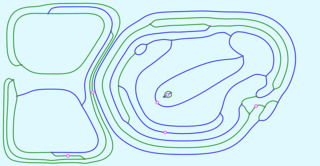
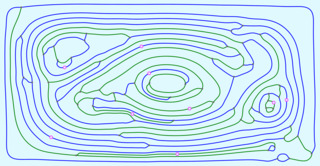
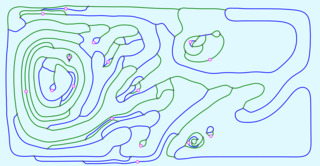
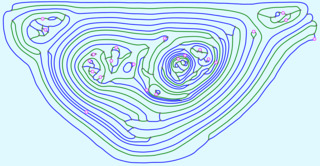
Read this section if this is your first introduction to Sprouts and this software.
The easiest way to get started quickly on your first game is to do the tutorial below.
The rules of the game are simple. Two players start with a number of spots (also called points or vertices) and take turns connecting spots with curves (also called edges). The curves must not touch or intersect, and no spot can have more than three curves attached (a curve from a spot back to itself, a loop, counts twice). When drawing a new curve, a loop or from one spot to another, the player adds a new spot somewhere along the curve, usually at the approximate center. The player who first is unable to draw a new curve loses. In another version, misère, that player wins.
The number of curves that still can be connected to a spot are the lives of that spot. That number equals 3 minus the number of curves already attached. It is convenient to have separate names for the
different possible numbers of lives of a spot. We use the following terminology:
The colors in this table are the defaults. They can be changed in the Colors menu. They may be different in a picture that you see.
Lives Left
Name
Color
3
seed
Rose
2
sprout
Orange
1
link
Fuchsia
0
stump
Gray (half size)
1, no possible destination
survivor
Fuchsia, hollow
Most spots are shown as filled circles, but the initial seeds can also be shown as triangles. Survivors are shown as hollow circles or triangles.
Tutorial
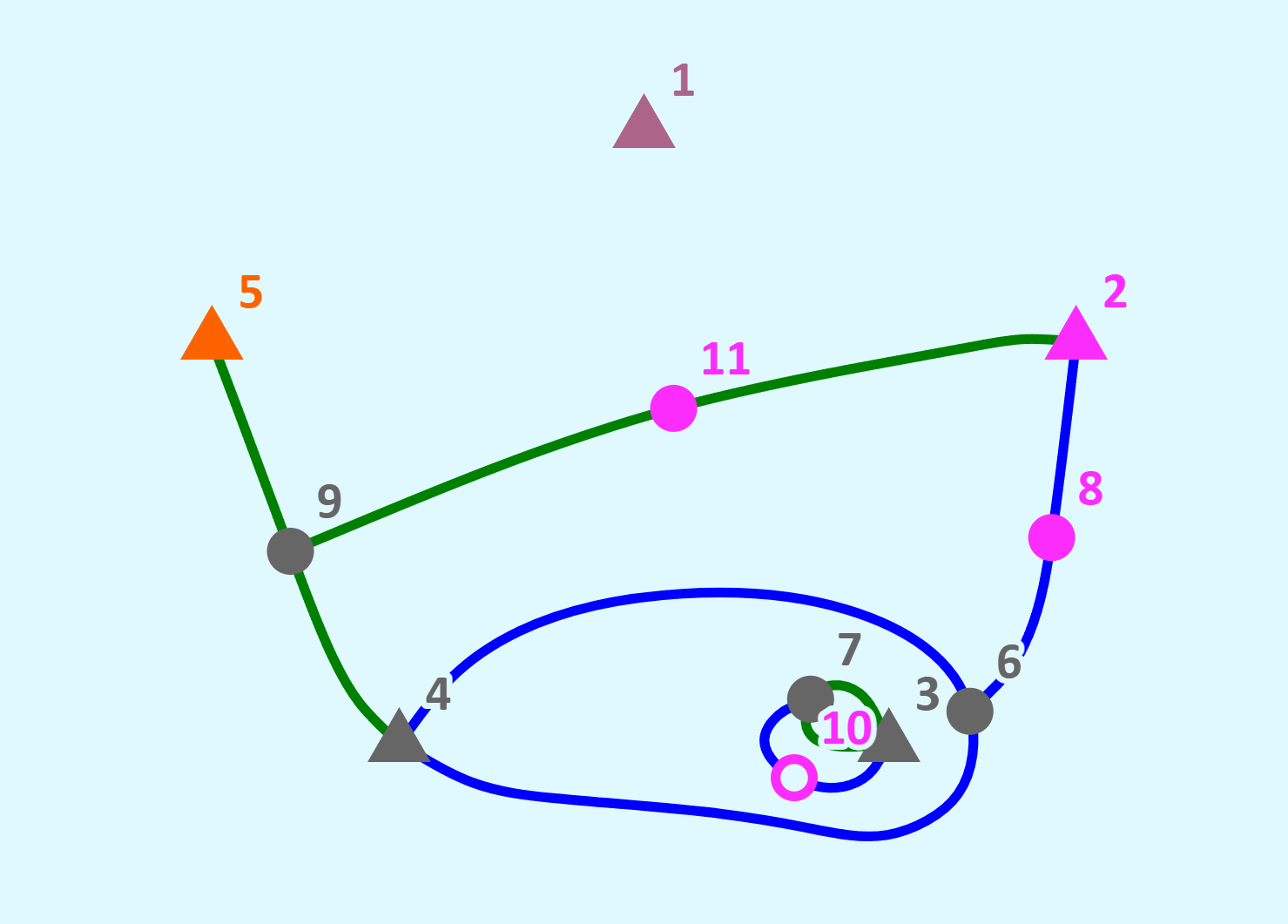
Figure 1 shows the beginning of a game. The players started with 5 seeds, shown as triangles, and labeled 1 through 5. As a first introduction to this software, and a tutorial in the mechanics of a game, including the use of menus and keyboard shortcuts, follow these instructions to create the picture in Figure 1:
Click on the picture in Figure 1. A new tab will open that shows five labeled seeds in an elliptical pattern.
Find the menu labeled Player 2, open the sub-menu Plays and select Human. Player 1 starts out as human by default, but repeat the process if necessary.
In the new tab type T (or t) to mark the initial seeds as triangles, G to label the stumps, and H to show the stumps in full size.
Draw a curve from spot 4 around spot 3 and back to spot 4. Keep the left mouse button depressed as you do so. When you are done you will see the curve smooth out and show a new link labeled 6. If you make a mistake type u to undo the move. If you start at the wrong spot use the space bar to cancel the drawing of that curve.
Click twice on spot 3. You will see a loop starting at 3.
Draw a curve from spot 2 to spot 6.
Draw a curve from spot 4 to spot 5.
Draw a curve from spot 7 to spot 3.
Draw a curve from spot 9 to spot 2.
To save the picture open the File menu and click on Save picture as PNG.
You are now ready to use the software. To play against the computer select Fast parity search in the Player 2 menu, type N and make your first move. By default your AI opponent will use 5 seconds of parity search at each move.
Game Essentials
Initially there are a total of $3n$ lives where $n$ is the initial number of spots. Every new curve reduces the number of lives by 2 (one each at its start and end) but it also adds a new link with one life left, so the total number of lives decreases by 1. At the end of the game there is at least one survivor left.
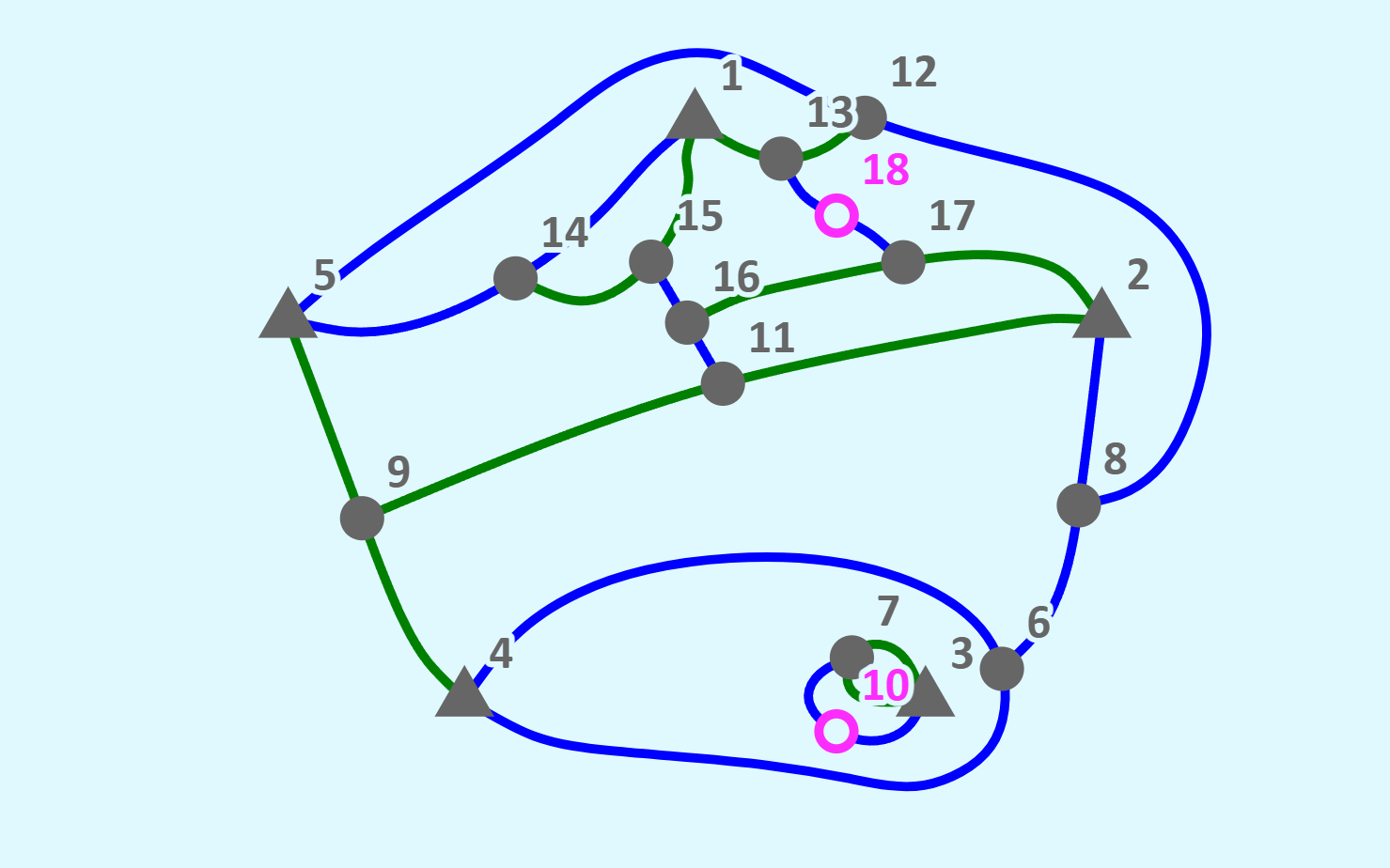
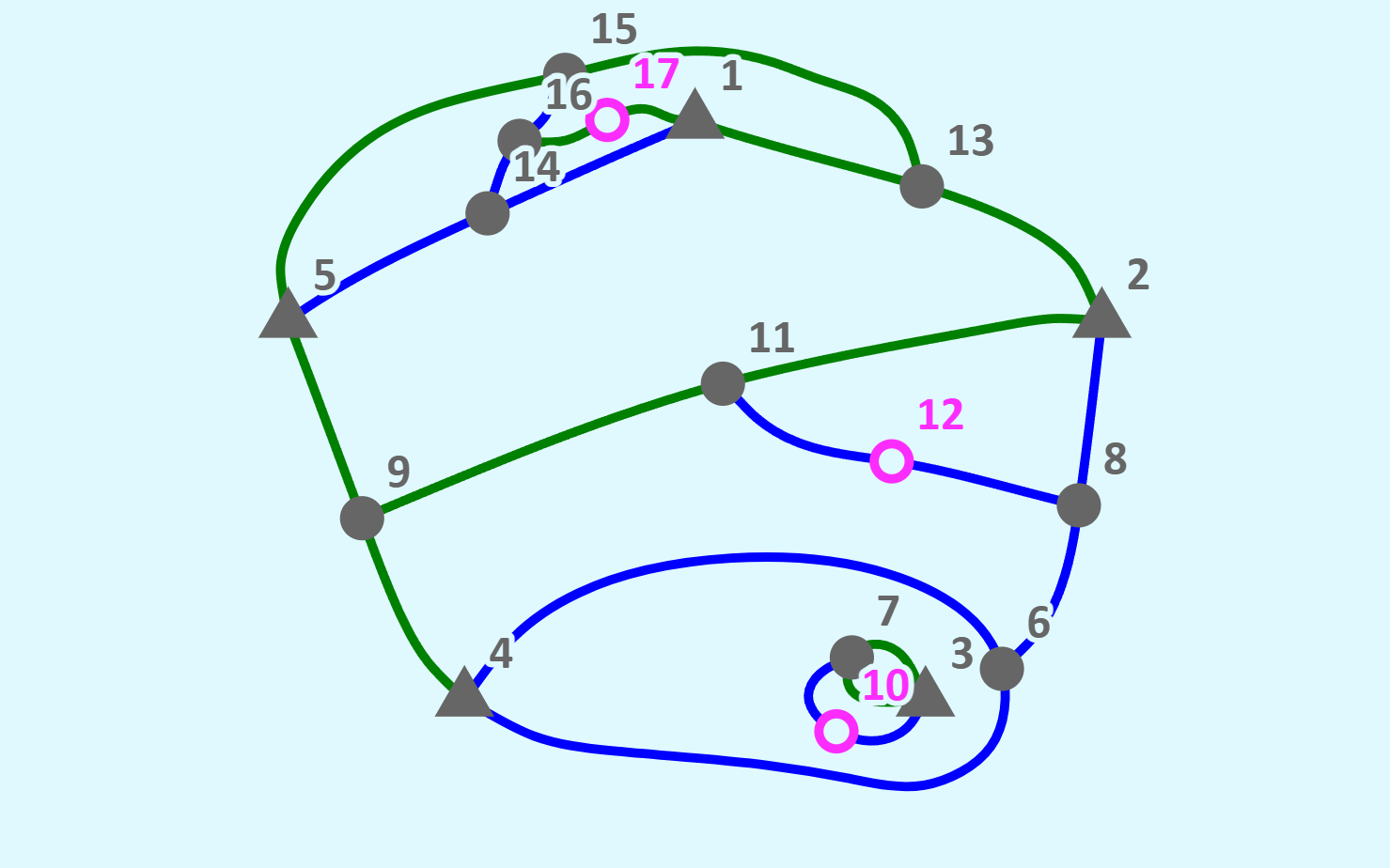
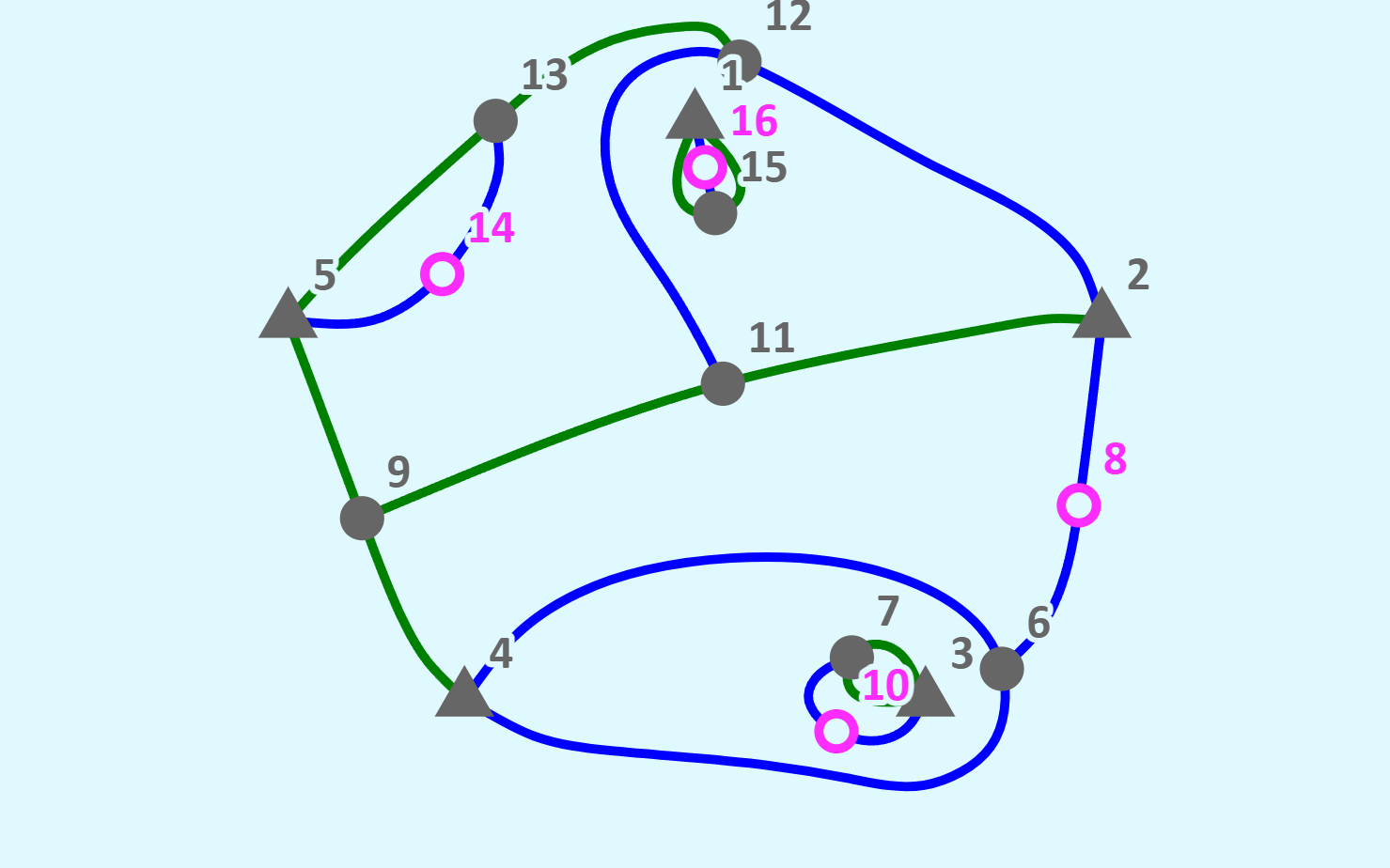
Fig. 2: 2, 3, or 4 survivors
You might argue (I did when I first learned about the game) that initially there are $n$ seeds and $3n$ lives. The last move leaves a survivor, and therefore it will take $3n-1$ moves to finish the game. Inevitably, player 1 will win if $3n-1$ is odd, and player 2 will win if it is even. It's not that simple! Look at the picture in Figure 1. There are nine lives left (count them!) but spot 10, with one life left, cannot be connected to another spot. It is a survivor! The curve 4-6-4 surrounds a separate region that was created with the original curve around spot 3. However complex the inside of that region may be, it cannot interact with spots on the outside.
The game can continue outside that region, and there will be at least one more survivor on the outside. But there may be more than 2! Figure 2 shows three possible completions of the game, with 2, 3, or 4 survivors. The total number of moves in any game, therefore, is $T=3n-s$ where $s$ is the number of survivors. The first player plays to make $T$ odd, the second to make it even (the other way round in misère). This is the source of all the complexity and trickery!
Game Layout
Since the drawing may get crowded the layout of the game page is chosen so as to maximize the area in which you can draw. There are just two rows at the top of the page that are not used for drawing. The first row contains a number of menus that you can use to control the game. This is the Control Row. The second row gives you information about the game as it proceeds. This is the Status Row. Below it is the Drawing Area.
The size of the drawing area, width x height, is measured in pixels and is listed in the status row when first bringing up the game window. That information changes accordingly when you resize the window. You can also give the drawing area an exact size with Size in the Game menu (see Game Settings). Most of the game development and testing used a drawing area of size of 1090x607 pixels. The largest drawing area, available by going full screen (typing F) on my system, and scaling by 100% (which makes print and icons small and hard to read), is 3840x2103 pixels. That area can accommodate 100 spots in an ellipse, or distributed randomly, but not in a circle or a line. The recommended scaling on my system is 150%. At that scale the size of the full screen drawing area is 2560x1383 pixels.
In an ordinary browser tab the browser keeps its own rows of tabs, address bar and bookmarks above the game, and it does not let the game change the size of the window. Typing Y moves the game, as it is, into a window of its own, without those rows; there the Size menu resizes the window itself. Typing Y again moves the game back into an ordinary tab (see Viewing Options).
Drawing the Curves
Drawing by Dragging
There are several ways to draw the curves. The simplest may come most naturally. Click on a spot, keep the mouse button depressed, drag the cursor to the destination spot, and let go of the mouse button. As you do this, all possible destinations, spots that you can reach with your curve, will light up by doubling their size. You can let go of the mouse button and stop drawing as soon as your intended destination changes its color. When you click anywhere in the drawing field this is interpreted as clicking on the nearest spot that has lives left. The starting spot is marked with a circle around it.
If anything goes wrong with your curve but you have not finished it hit the space bar (which interrupts any ongoing process) and try again.
Drawing by Clicking
You may find it easier to draw by clicking. To move from $x$ to $y$ begin by clicking on $x$. Clicking on a link, a spot with one life left, is somewhat delicate. You can depart from a link to one side or the other. You choose the side by moving a small distance in your chosen direction. If you forget and just click on a link then the system will choose a direction for you which may not be the direction you intended. If a link can reach another spot with a life only from one side the system will depart towards that side even if you choose the other. Next, click on $y$. If $y$ is a link it may matter from which side the curve arrives: click just outside the link, on the side you want, rather than on the link itself. If both $x$ and $y$ are connected (or $x=y$), the new curve splits a region in two, and you may wish to include some spots in one of the new regions: after clicking on $x$ and before clicking on $y$, right-click (or Shift-click) on those spots. They will turn into squares to indicate their status. If the curve cannot be routed around the marked spots the status row says so; Enter then draws the shortest curve instead.
Adding Seeds and Moving Spots
The system lets you add a new seed by Ctrl-clicking in an empty part of the drawing area. This facility may be helpful for experiments and study, but of course adding seeds is not part of an ordinary game.
Ctrl-dragging a spot moves it: a seed moves freely within its region, a sprout lengthens or shortens its curve, and a spot in the middle of a curve slides along it.
The Control Row
The easiest way for two humans to play against each other is to get a large sheet of paper and a couple of pencils. This software offers several additional options:
Playing against an AI
Making space
Playing remotely
Undoing moves and other actions
Recording games and pictures
These options are controlled with the menus in the Control Row. The individual items are described next, working from left to right. All controls will also show detailed information in a text field that pops up after hovering over the control for 2 seconds.
To open one of the menus click on it. To close it click it again or click anywhere else.
Name and Version Number
The name of the game is Sprouts. The version number is increased every time I commit the files to Git.
A technical description of the software is opened in a new tab.
A list of keyboard commands is shown in the drawing field. That list can also be invoked by typing K (or ?). To return to the drawing type K or ? again, or hit the space bar.
Parallel Processing
Your computer can run several logical processes in parallel and the software uses this facility heavily in AI play and when making space in the drawing. JavaScript refers to the available processes as workers. By default the system uses all available workers, but you can reduce their numbers in the Workers menu.
Game Settings
The following settings are available:
The number of spots. You can increase it or decrease it with the buttons to the right of the text field. You can also simply enter a number in the text field. The default number of spots is 5. There is no limit to the number of spots other than the size of your drawing field and your computer resources.
The layout of the spots. The default is to have them equally spaced on an ellipse that matches the aspect ratio of your drawing area. You can also place them on a circle, in a line, randomly, or by hand. The keys 1 … 9 start a new game with that many spots in the chosen layout, even if a game is ongoing. Pressing 0 gives an empty drawing area in which you place the spots by clicking in the desired places with the left mouse button. When you are done, pressing Enter or N then starts the game.
By default the player who makes the last possible move wins. You can change this to the misère version where that player loses.
Size of the drawing area, in pixels. The two fields show the present width and height. To change the current size replace these numbers and press Enter or click Set. The buttons give 1090 x 607, 1280 x 742, 1024 x 1024, 512 x 512, the largest square there is room for (Max square), and Full screen. In a window of its own (Y) the window grows or shrinks so that the drawing area gets exactly that size, and stays resizable by hand; if the screen is too small, the drawing area gets the most there is room for, and the status row says so. In an ordinary browser tab, which the game may not resize, the drawing area is given the size inside the tab, with the page’s dark background around it; resizing the window by hand lets the drawing area fill it again. Before the first move a new size lays the spots out afresh; later the picture is only scaled.
Random seed: left empty, the random layout, the Random player and the tie-breaks among equally good computer moves differ from game to game. With a number in the field they are repeatable: the same seed, number of spots and settings give the same spots and the same moves every time (Monte Carlo’s random games are not covered). Useful for comparing versions of the program on the same game.
You can interrupt any ongoing game and start a new game. You can also do this by typing N. With the Random and Place by hand layouts, and after a game was loaded from a file, the new game starts from the same seeds as the game before; to get a new random distribution change the number of spots or the layout, or type one of the keys 1 … 9, and to place spots afresh type 0.
You can undo the last move. If a human plays against a computer the last human move will be undone. You can also use the keyboard command U. The keys < and > step back and forward through the game one move at a time; meanwhile the computer waits, and a move made at any point continues the game from there.
To close the game’s tab click on Exit or type X. A browser lets a page close itself only when it was opened in a tab of its own (for example from this guide, or from a desktop shortcut); otherwise the status row says how to close the tab.
Player Settings
There are four possible settings for each player, players 1 and 2. They can be invoked with the Plays sub-menu, one for human play, and three for AI play. They are:
Human: all moves are made by a human player.
Random: The system picks a region and a starting and an end spot at random. If the two spots lie on the same boundary of the region, the new curve splits the region in two, and every other separate part of the drawing inside that region (a seed, or a group of spots connected to each other) can end up on either side: the system first picks at random how many of them go inside, then which ones. There is no look ahead at all.
Monte Carlo: The system considers all possible moves and plays a number of random games after each move. Then it picks the move that led to the most wins by the current player. The number of games, 100 by default, or the amount of time available to the AI player, can be set by the user. Monte Carlo never switches to exact play, even as the game gets close to the end.
Fast parity search: The AI examines the game tree to a certain depth. The user can specify the depth, or a certain amount of time available for the move. If a time is specified then depth 1 is searched completely. At each stage the system increases the depth by 1 and continues the search if the remaining time exceeds the amount of time used for the previous level. At the end of each line of the search (a leaf) the system computes an upper bound on the number of moves the game can still last, and a lower bound. It assumes that the largest number will actually be played, and judges the position by whether that number has the parity the player wants (odd in normal play, even in misère), trusting this judgment more the closer the two numbers are. It picks the move that does best by this judgment against the opponent’s best replies, as deep as the search goes; when several moves tie, Monte Carlo games among them decide, and if they still tie, chance. As the board divides into separate regions it considers each region by itself, and as the end of the game approaches the search becomes exact.
Sharp parity search: The same, except that at a leaf it uses the largest number of moves that can actually be played from there (the M of the status row), as far as the time allows, instead of the upper bound. Its judgments are truer, but each leaf costs more, so in the same time it may not look as far ahead. The upper bound is usually the true largest number already (in 98% of the positions that can arise from 5 seeds), so the two searches mostly agree; Sharp makes a difference only where the bound is too high. In a test on a game with 9 seeds after 6 moves, both searched all the way to the end of the game in a few minutes and chose the same move at every depth but one; Sharp took about one and a half times as long.
Monte Carlo and the two parity searches each have a pair of fields: a number (random games per move, or the search depth, 6 by default) or a number of seconds per move. Filling in one field of a pair empties the other. The button Same as Player 2 (in Player 1’s menu, and the other way round) copies the other player’s kind and settings.
By default Player 1 is human, and Player 2 uses fast parity search with 5 seconds allocated to each move.
Playing Remotely
You need to have an internet connection to play over the net. Both players must be human. One of you will act as host, the other as guest. To play follow these steps:
Both of you click on the Net menu.
As host, click on Host a game. You will see a three-digit integer appear in the white Code field. Communicate that number to the guest.
As guest, enter the code into your text field and click on Join as guest.
The host is Player 1 and starts the game (New game in the Game menu, or N). Commence play.
Either one of you can leave the game by clicking on Leave in the Net menu. Each player can use different settings (size of the drawing area, colors, space making) for their drawing. After you move, your drawing area shows the Background while computing color (Colors menu) until the other computer has drawn your move. Either player can undo the last move (U), whoever made it.
Viewing Options
The following viewing options, listed by their keyboard shortcuts, are available.
F turns full screen on or off. Generally speaking, the larger you can make your drawing area, the better.
C shows the control polygons. The curves are piecewise cubic Bézier curves.
S: Spots are numbered sequentially by indices. This option turns drawing of the indices on or off.
T: Draw the initial seeds (and any seeds added by hand) as triangles (off by default).
G omits the indices of stumps. They are not participating in new curves (on by default).
/ omits the indices of seeds. In a game with many seeds they are many, and a seed needs no name until a curve reaches it (off by default).
H draws stumps half size, for the same reason (on by default).
Q shows the size of the drawing area in the status row as width x height, in pixels.
Y switches between an ordinary browser tab and a window of its own, without the browser’s tabs and toolbars, carrying the game, its settings and its log along; the drawing area keeps its size (in a tab larger than that, it sits in the middle until you resize the window by hand), and the tab or window it leaves closes itself. In a window of its own Size in the Game menu can resize the window itself, which an ordinary browser tab does not allow.
Settings
This menu offers some sliders and options to fine tune the picture you are seeing:
Minimum clearance between curves, ranging from 3 px to 30 px (6 px by default).
Comfort distance: curves closer together than this push each other apart; beyond it they hardly affect each other. It is the largest distance at which the system still cares how close curves come. It ranges from 10 px to 64 px (40 px by default).
Room vs length: The system tries to make the curves short and also so that enough room is left for more curves. This slider, ranging from 0.1 to 10, lets you adjust the relative importance of these targets (1 by default, equal weight).
Spot size, the diameter of the spots, ranging from 6 to 36 px. Curves keep clear of the spots, so a change applies to moves made from then on.
Curve thickness, adjusts the thickness of curves, ranging from 1.25 to 7.5 px.
Index size adjusts the size of the spot indices, ranging from 6.5 to 39 px.
The first new game in a drawing area of a given size sets the spot size and the index size to suit it: with C the mean of the area’s width and height, the spot size is C/70 and the index size C/50, each held within its range (in a 1090 x 607 area: 12 and 16.9 px). The curve thickness is never changed by a new game. You can change all three afterwards, and further new games in the same area leave them as you set them; a loaded game keeps the sizes it was saved with.
Animate, on by default, graphically shows each new curve settling into its shape, and the process of making room.
Click to connect, on by default, makes it possible to define new curves by clicking on the spots.
Making Room
The system offers four options to make room or generally redraw the position:
M adjusts the location of spots and the routing of nearby curves for a specific move.
A leaves the initial seeds (and any seeds added by hand) in place, but moves other spots and redraws curves.
R similar to A, but also moves the initial seeds.
Z redraws the position from scratch.
By default, the M and R options are invoked automatically for both human and AI players. For AI players, the Z option is also invoked automatically. The checkboxes can be used to turn the automatic options on and off. When a move does not fit, the options are tried in the order M, A, R, Z, •, each once, until the move can be drawn. For a human player the options are invoked automatically as long as their boxes are checked in a row: at the first unchecked box (other than A, which is simply skipped) the system stops and offers that option and the remaining ones in the status row. Pressing one of them tries the move again, and the system then goes on from there by the same rule. For an AI player the checked options are invoked in order and the unchecked ones skipped; if none succeeds the game stops and the status row says so. The keys M, A, R, Z and . can also be pressed at any time, and the space bar stops A, R or Z.
The last column, headed by a bullet (•), is the option after Z. When it is checked and Z fails to draw a move with every spot at its full size, Z may draw some spots smaller — only those in tight places, and never smaller than the smallest spot size of the Settings menu. The log names the spots drawn smaller, and they grow back to their size as soon as a later R or Z finds room for them. It is off by default for human players and on for AI players; Heroic mode turns it off for human players. At the end of a game the log says how many spots are still drawn smaller. The key . (period) draws the picture afresh with smaller spots allowed, at any time.
When a move is refused for lack of room — there is no way through with the minimum clearance, or the curve would come too close to something — the status row says why, the move stays begun, and the message offers M, A, R, Z and .. You can also click another spot instead. The key D draws the refused move again in the drawing as it is now, as if you clicked its destination again: useful after you have lowered the minimum clearance, moved a spot by hand, or changed the Room boxes.
Selecting Heroic Mode turns the human space making options off and draws curves as they are drawn by a human player.
Games Played to the End
How far can the drawing be pushed? The table below records games of Random against Random, each played to the end from $n$ seeds placed at random, with every setting at its default except that the spot indices are not shown, in a drawing area of 2560 x 1331 pixels (my screen, less a line the browser kept for itself), with version 200 of the program — except for the game of 60 seeds, whose conditions differed a little and are given below. The columns count how often the program tried to make room for a move (M, successful or not), rearranged the drawing (R), drew the picture afresh (Z), and drew spots smaller for lack of room (•); then the number of moves of the game and the time it took, from the first move to the last. Clicking a picture shows it at half size.
$n$
M
R
Z
•
Moves
Time
Final picture
10
0
2
0
0
24
0:31
20
2
3
1
0
51
1:25
30
3
4
2
0
74
2:13
40
18
7
2
1
98
10:01
50
23
10
6
1
127
13:24
60
12
8
3
1
150
98:05
The game of 60 seeds is at the edge of what the drawing can carry. The run in the table was played with version 201, from the fixed random seed 1, in a drawing area of 2560 x 1383 pixels (the same screen, without the line the browser had kept for itself); it reached the end of the game at move 150. Two earlier 60 seed games, each from seeds drawn afresh, stopped short — at move 114 with version 199, and at move 88 with version 200 — when the computer could not draw its move even after M, R and Z (a whole round of 32 fresh layouts failed). What uses up the room is not the number of spots but the Random player’s taste for enclosing most of the board: the picture ends up as a nest of rings, each a region of its own with two or three lives on a boundary thousands of pixels long, and each keeps room for a curve along its whole length.
Not every Z is for lack of room: a Random player likes to enclose a dozen or more of the things in a region at once, and when there are too many separate things in a region to route a curve around the chosen ones, the move is drawn afresh instead.
Colors
The sub-menus let you change the colors of the various parts of the drawing. You can save your favorite scheme by setting up a game as you like and download it as a JSON file, using the File menu. To start afresh from the same position import the position, again using the File menu.
Importing and Exporting
You can download various records of your game, and import a saved game, with these options:
Load game lets you import a JSON file with a saved game. It opens the regular file selection menu on your computer.
Save picture as PNG puts a PNG image of the current position into your download directory, so you can send it to your friends.
Save game as JSON lets you save your current status (including all selected options, the players and the size of the drawing area) for reloading at a later stage.
Save log as text downloads the program’s log of the session — every move, the computer’s thinking, room made or refused — as a text file. Its primary use is for debugging.
Save the log of the last session is another debugging tool. The system keeps and updates a copy of the current log in the browser’s storage. If the page crashes you can start a new Sprouts session and immediately select this option.
Save position as text downloads a text file that describes the current topological position.
The Status Row
The row under the menus tells you what is going on and what you can do next. During a game every message starts with the number of the move being made, for example Move 12:. Messages too long for the row can be scrolled sideways with the mouse wheel. The players are named by the colors of their curves.
These are the messages you will see most often:
Welcome to Sprouts. Drawing area is 1090 x 607: the size of the drawing area in pixels, shown when the game starts, whenever the size changes, and when you type Q.
Blue to move L=9 m=2 M=7 K=1: whose turn it is, and four numbers about the position: L the lives left on the board, m a lower bound on the number of moves the game can still last, M the largest number of moves that can actually still be played, and K the number of survivors. When $m = M$ the length of the game is settled, however it is played. M is worked out in the background, usually within a fraction of a second; until it is known the row shows the upper bound as M≤7, and in a few complicated positions that may stay.
Click the destination spot (4 possible) — right-click marks spots to enclose — click just outside a spot to choose its side — Space cancels: after the first click of a move. It also lists the spots marked to be enclosed, and destinations that can be reached in principle but have no room for a curve.
Green (Fast parity search) is thinking …: the computer’s progress. When its search has seen the whole rest of the game, the message after its move adds a verdict: Green has a winning position or Green is lost against best play.
No room to reach spot 7 … or No room: the curve comes too close to something to be smoothed: a move that does not fit. The message offers the ways to make room (M, A, R, Z and the period) and D to draw the move again; the ways to make room are also tried automatically as the Room menu says, and Still no room … says which were tried and which remain to be tried by hand.
Not drawn afresh: the first 32 layouts (one round, one for each worker) all failed … the picture has run out of room: Z could not draw the position in the room there is. Z takes the first picture at least as roomy as the one before; when the picture before is already below the minimum clearance, it takes the first that can be drawn at all. More room comes from smaller spots or a smaller minimum clearance (Settings); a larger drawing area helps only a new game, because during a game a new size only scales the picture.
Drawing area is 1090 x 607 — the window could not be resized …: Size in the Game menu, used in an ordinary browser tab; the message says why (for example, that Y gives the game a window of its own, which can be resized).
Blue can’t move — Green wins. Game over. L=8 m=0 M=0 K=8: the end of the game, with the same four numbers as during play: L the lives left, m = M = 0, and K the survivors (at the end every life left belongs to a survivor, so K = L).
Click to place the spots (3 so far), then press Enter or N to start: when you place the spots by hand.
Over the net: Blue (you) to move or Blue (the other computer) to move, Your move is being drawn on the other computer…, and, for the guest, Waiting for the host to start a game…
Warnings and refusals are written in yellow, and are also recorded in the log (File menu).
The browser tab’s title (shown in the title bar when the game runs in a window of its own) carries the same numbers, and two more: for example Sprouts v. 159 12: P = 5 L = 9 m = 2 M = 7 K = 1 R = 4, where 12 is the number of the move to be made, P the number of initial seeds (and seeds added by hand), and R the number of regions, the outside included.
Keyboard Commands
These are the keyboard commands and mouse actions, as in the list the game shows when you type K (Help menu, Keyboard Commands). Letters can be typed in either case.
Game
1 … 9
New game with that many spots, in the Game menu’s layout
0
Blank window: place the spots by clicking
N
New game (while placing spots: start the game from them; with the Random or Place by hand layout, or after Load game: the same seeds as before)
Enter
Start the game from the spots placed; draw a move the shortest way when its marks cannot be applied
U
Undo the last move
<>
Back / forward through the game one move at a time
Space
Stop what is under way: the computer’s thinking, A, R, Z, making room, finding a way, a move begun by clicking. Between two computers: stop the game after the move being drawn; again: continue
X
Exit (close the page)
Drawing
M
Make room for a move that does not fit
D
Draw a move refused for lack of room again, in the drawing as it is now
A
Adjust the drawing
R
Rearrange the drawing
Z
Draw the picture afresh
.
Draw the picture afresh, spots smaller where there is no room
View
F
Full screen
C
Control polygons
S
Spot indices
T
Initial seeds as triangles
G
No indices at stumps
/
No indices at seeds
H
Stumps half size
Q
Show the size of the drawing area (in pixels) on the status line
Y
Window of its own (resizable by Game → Size) / back to a browser tab
File and Help
P
Save the picture as PNG
K or ?
This list
With the mouse
Click, click
Connect two spots (Click to connect, Settings menu)
Drag
Draw a curve by hand from spot to spot
Right-click or Shift+click
After the first click: mark spots the curve is to enclose
Ctrl+click
Add a seed where one fits
Ctrl+drag
Move a spot
AI Assisted Programming
I have been programming computers for more than 50 years, and this project has been different from all preceding ones. My first project after retiring in July of 2025 consisted of writing a financial calculator in a language new to me, i.e., JavaScript. I proceeded as I had many times before: I bought a book on JavaScript, read much of it, and proceeded to write the code all by myself, debugging it laboriously as I went on. In subsequent projects, I relied increasingly on AI help, first from Gemini, and then from Claude. About 20 years ago, I had tried to program Sprouts in Java. Then, I got to a stage where you could draw curves by hand, and two players could play a game on the same computer, taking turns. There was no curve smoothing, space making, or AI play. I gave up eventually because the project was just too difficult, for me at that time. Developing this new software (comprising more than 10,000 lines of JavaScript code so far) to the stage that everything works and I am producing the introductory video as the last step took just four weeks! Moreover, except for a couple of times when I was curious, I never looked at the code! At each stage I just told Claude what the software should do, and Claude wrote it, tested it, and debugged it. The world of computer programming has changed profoundly! Moreover, it continues to change extremely rapidly. Claude of October 2026 is vastly more powerful than Gemini of August 2025, or even Claude before the release of Claude Fable in June of 2026, or Claude Fable 5.1 in September 2026. Beyond coding, I had many conversations with Claude about algorithmic details, and Claude was helpful in writing the documentation. I wrote this User's Guide and Claude helped with formatting, and checking for completeness and correctness. By contrast, Claude wrote the technical description almost entirely by itself and I edited it only in minor ways, with a view towards clarity and appropriate emphasis. There is of course a great deal of discussion currently of where AI is taking us. I don't know where we are going, but we are going somewhere awfully fast!